Sales order automation
Sales order automation brings wholesale and online orders into one workspace, with less repetitive entry.
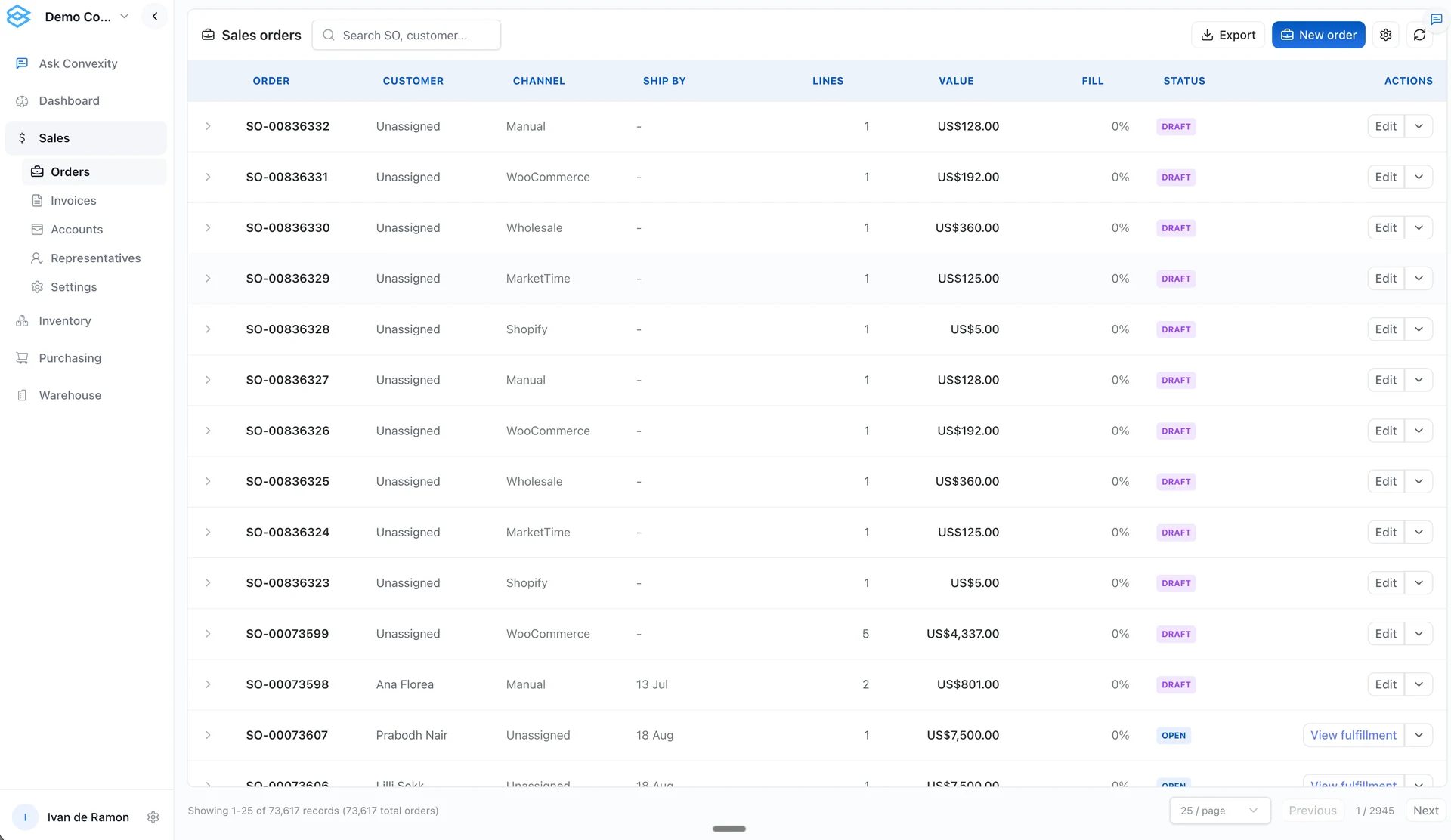
Sales order automation for distributors: customer details, SKU pricing, stock checks and fulfillment status in one order record, from entry to invoice.
Enter each order only once
Wholesale orders arrive by email or through a rep. Online orders come through your storefront and marketplaces. Convexity brings imported orders and manual wholesale entry into one workspace. Your team sees customer details, products, quantities and prices together. Nobody rebuilds the order for each handoff.
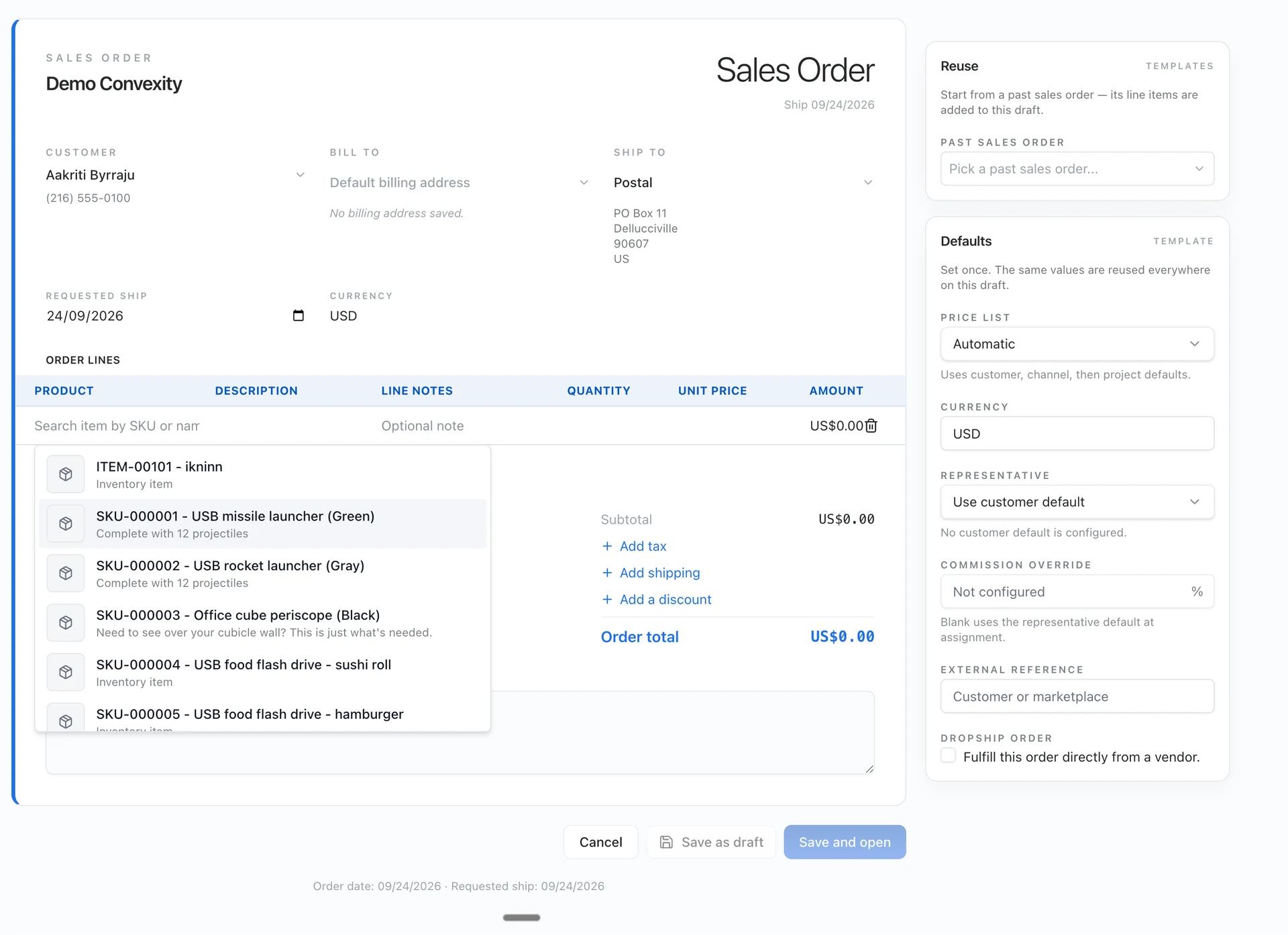
Create sales orders with customer details, line items, quantities and SKU-based pricing.
See connected-channel and wholesale orders in one order list.
Reuse the line items from a past sales order for a repeat customer.
Check fulfillment and billing status from the order record.
From order to warehouse handoff
Bring the order together
Import orders from supported sources or enter a wholesale order. Pick the customer and delivery address. Add the items and quantities with the right pricing.
Check what you can fulfill
Review stock availability and existing commitments. Keep wholesale and retail pricing separate. Note whether the order ships from your warehouse or follows a supplier-direct process.
Move the confirmed order forward
Move a confirmed order into the warehouse workflow. Track fulfillment and billing from its record. Email confirmations and invoice creation follow the rules set up for your business.
Create a sales order from an email or photo
Ask the agent to turn a customer email or order photo into a sales-order draft. Check the customer, products, quantities and prices before you confirm it. Unmatched items stay visible for review.
Track the order after creation
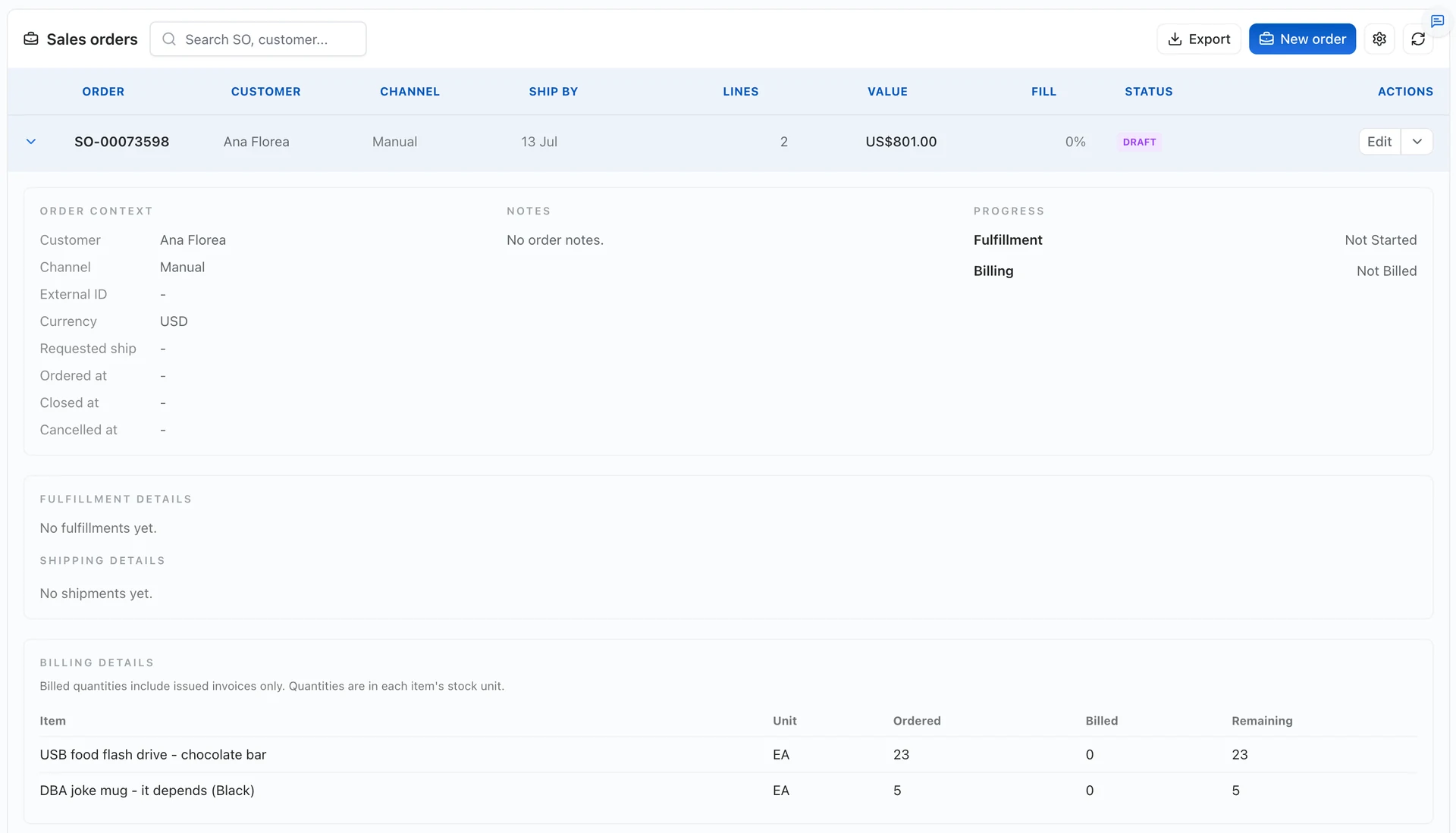
Open an order to see its customer, channel, line items, fulfillment progress and billing quantities. Your sales team can check what happened without asking the warehouse or accounting team for an update.
Bring your current order process
Sample orders and the fields each team needs to do its work.
An agreed item master and mappings for customers, SKUs, variants and prices.
Authorized API access or agreed exports, with enough order history.
A named reviewer, exception rules and a test of what happens when data is missing.
Start with one workflow. Confirm the records, review the output and agree permissions. Do this before you enable actions that change inventory, send messages or create purchase orders.
Bring one repetitive order or purchasing workflow to a demo. We will review the inputs, show the relevant product flow and name what needs configuration.
Book a demoFrequently asked questions
Start with your workflow
Bring one inventory, purchasing or order-management problem. We will map the required data, demonstrate the relevant workflow and identify what needs configuration or further validation.
Book a demo